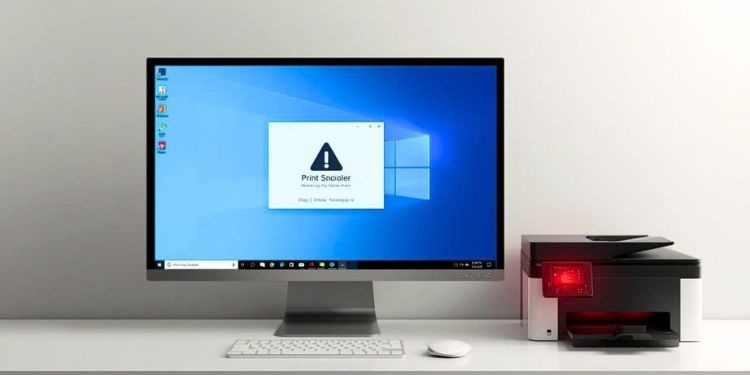
Resolving Print Spooler Errors
Print spooler errors can disrupt printing by preventing documents from reaching the printer. The print spooler is a system service that temporarily holds print jobs before sending them to the printer in sequence. If this process encounters problems, print jobs may get stuck, disappear, or fail entirely.
Spooler errors often occur after system updates, unexpected shutdowns, or when multiple jobs are sent simultaneously. Corrupted files in the queue or conflicts between jobs can also trigger these issues. Following a step-by-step troubleshooting approach can restore normal printing efficiently.
Identifying Common Spooler Problems
- Print jobs stuck in a "pending" or "error" state.
- Repeated error notifications when printing.
- Printer showing offline despite being powered on.
- Slow or unresponsive printer behavior.
Recognizing these symptoms early helps prevent a buildup of failed print jobs.
Clearing the Print Queue
A congested or corrupted print queue is a frequent cause of spooler errors. Open the print queue and cancel all pending jobs to reset the process. After clearing the queue, send a single test print to ensure the spooler functions correctly before resuming normal printing.
Restarting the Spooler Service
Restarting the print spooler refreshes the system and removes temporary glitches. You can also restart your computer and turn the printer off and on to reestablish communication. This often resolves minor spooler-related problems quickly.
Checking Printer Connections
Spooler errors can result from unstable connections. Loose USB cables, network interruptions, or incorrect printer selection can interfere with print jobs. Verify that your printer is correctly selected and all connections are secure to allow smooth job processing.
Preventing Future Spooler Errors
- Avoid sending large batches of print jobs at once.
- Regularly clear unused jobs from the queue.
- Maintain a stable network and power supply for the printer.
- Restart the printer occasionally to refresh the system service.
By understanding how print spooler errors occur and using a systematic approach, you can quickly restore printing and prevent recurring disruptions. A well-managed print queue ensures efficient and reliable printing for everyday tasks.