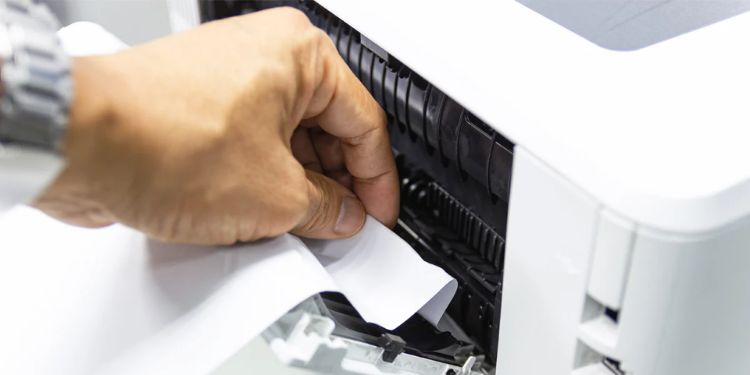
Common Printer Jams
Printer paper jams are among the most common and annoying printing problems, often stopping work unexpectedly. No matter whether you use an inkjet, laser, or multifunction printer, paper jams can occur for several reasons. Understanding why they happen and how to clear them properly can help reduce frustration, save time, and keep your printing tasks running without interruption.
What Causes Printer Jams?
A printer jam usually happens when paper does not move smoothly through the printer path. Some of the most frequent causes include:
- Overloaded Paper Tray: Filling the tray beyond its limit can cause sheets to stick together.
- Wrong Paper Type: Bent, damp, or unsupported paper sizes can lead to misfeeds.
- Dust and Debris: Dirt buildup on rollers may prevent proper paper movement.
- Mechanical Issues: Worn rollers or misaligned internal parts can grab paper incorrectly.
- Environmental Factors: Humidity and low-quality paper can increase the chance of jams.
Step-by-Step Guide to Fixing Printer Jams
Always switch off the printer and unplug it before attempting to remove jammed paper. This ensures safety and prevents further damage. Follow these steps carefully:
- Locate the Jam: Open all covers and paper trays. Check the full paper path and look for any visible paper stuck inside.
- Remove Jammed Paper: Slowly pull the paper out in the direction it normally feeds. Try not to tear it, as small pieces can cause repeat jams.
- Check Rollers and Paths: Inspect rollers for dust or debris and clean them gently if needed. Make sure nothing is blocking the paper path.
- Reload Paper: Align the paper stack neatly and reload it into the tray. Adjust the paper guides so they fit snugly.
- Power On and Test: Plug the printer back in, turn it on, and print a test page to confirm the issue is resolved.
Prevention Tips
To reduce the chances of printer jams in the future, consider the following tips:
- Use good-quality paper and keep it stored in a dry place.
- Avoid overfilling the paper tray.
- Clean rollers and internal parts regularly.
- Keep printer firmware updated for smoother operation.
- Disable double-sided printing if your printer frequently jams.
With proper handling and regular maintenance, printer jams can be greatly minimized. If jams continue to occur despite these steps, checking the printer manual or contacting a qualified technician may be necessary. Taking your time and removing paper carefully helps prevent further damage to your printer.