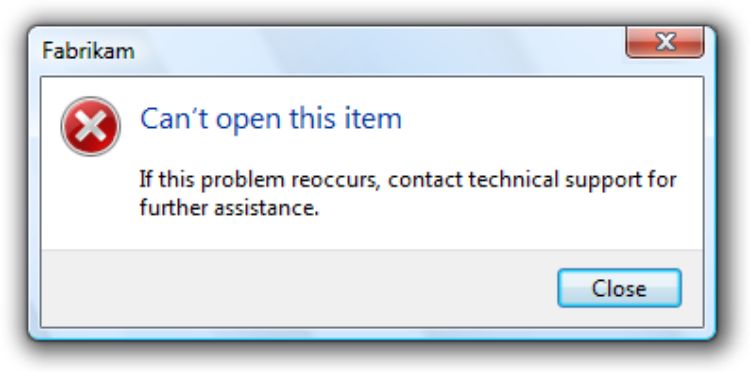
Troubleshooting Error Messages
Printer error messages can be frustrating interruptions, especially during important tasks. These alerts indicate problems that may affect printing, such as paper jams, low ink, connectivity issues, or internal faults. Understanding what each message means and how to respond helps you restore normal printer operation quickly and efficiently.
When an error appears, it’s important to stay calm and read it carefully. Ignoring the message or restarting the printer immediately may not solve the problem. Many error messages provide specific information that points to the root cause, making troubleshooting faster and more accurate.
Paper Jam and Feed Errors
Paper jams are among the most frequent error messages. Even tiny scraps of paper inside the printer can trigger alerts. Open all accessible panels and remove stuck paper carefully, following the paper path to avoid damage. Ensure the paper tray is properly aligned and not overloaded, as misfeeds often result from incorrect tray setup.
Ink, Toner, and Cartridge Errors
Messages related to ink or toner may indicate low levels, improperly seated cartridges, or unrecognized components. Remove and reinstall cartridges, checking that protective seals have been removed. Using clean, compatible cartridges helps maintain consistent print quality and prevents detection errors.
Connection and Communication Errors
Wireless printers may display errors due to weak signals, network changes, or disconnected cables. Confirm that cables are connected securely and the printer is linked to the correct network. Restarting the printer and the connected device can often restore proper communication and clear temporary faults.
Driver and Software-Related Errors
Outdated or corrupted drivers can prevent print jobs from reaching the printer or cause repeated errors. Check your computer’s printer settings to ensure the correct device is selected, and clear any pending jobs from the queue to restore normal operation.
General System Errors
Other occasional errors may result from overheating, power interruptions, or internal glitches. Powering off the printer, unplugging it for a few minutes, and restarting it can reset internal components. Keep the printer in a ventilated space to avoid overheating, which can trigger warning messages during extended use.
By following a calm and systematic approach to error messages, most printer issues can be resolved quickly. Understanding alerts, performing simple checks, and maintaining proper printer care helps reduce errors and ensures smoother printing operations.